QuestionQ30
Manage storage and file servicesOverview -
Contoso, Ltd. is a company that has a main office in Seattle and two branch offices in Los Angeles and Montreal.
Existing Environment -
AD DS Environment -
The network contains an on-premises Active Directory Domain Services (AD DS) forest named contoso.com. The forest contains two domains named contoso.com and canada.contoso.com.
The forest contains the domain controllers shown in the following table.
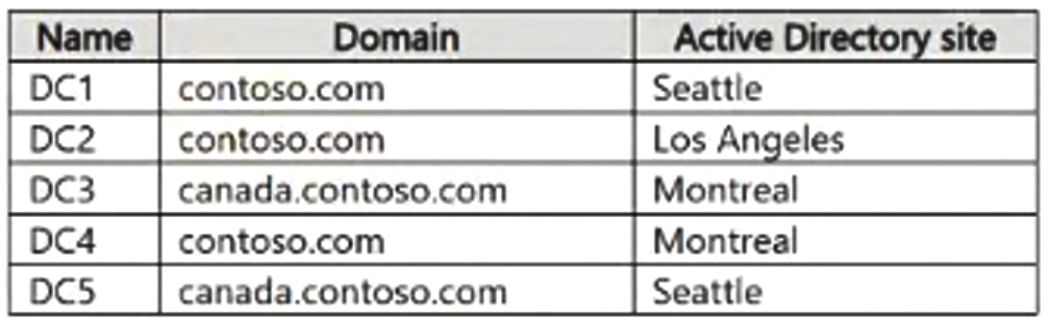
All the domain controllers are global catalog servers.
Server Infrastructure -
The network contains the servers shown in the following table.
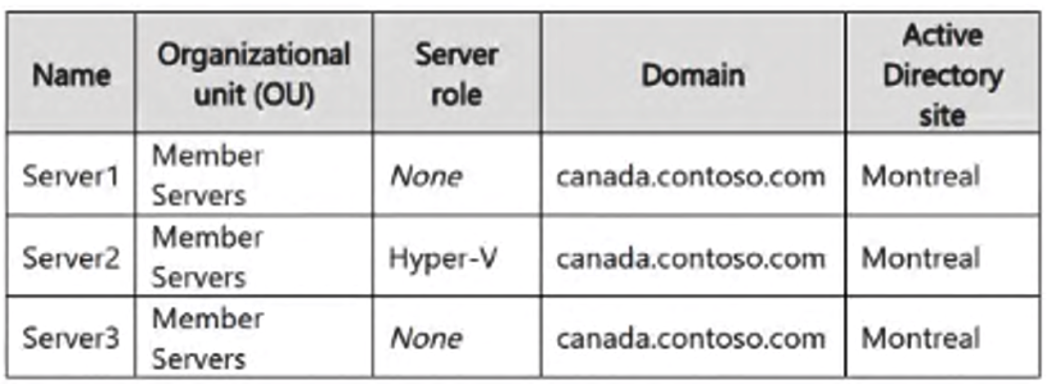
A server named Server4 runs Windows Server and is in a workgroup. Windows Defender Firewall on Server4 uses the private profile.
Server2 hosts three virtual machines named VM1, VM2, and VM3.
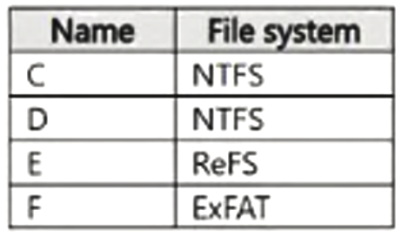
VM3 is a file server that stores data in the volumes shown in the following table.
Group Policies -
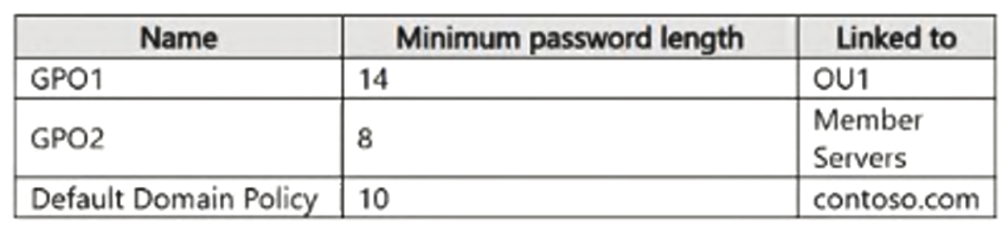
The contoso.com domain has the Group Policies Objects (GPOs) shown in the following table.
Existing Identities -
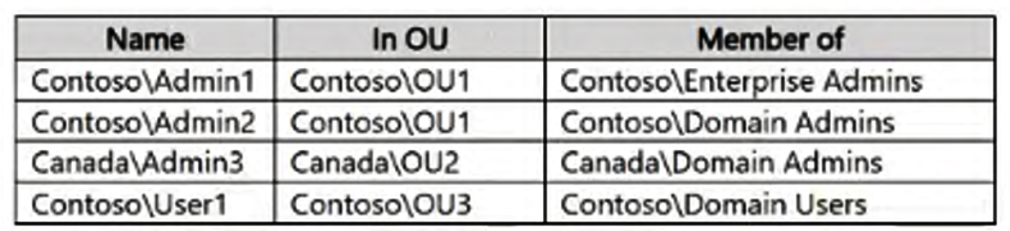
The forest contains the users shown in the following table.
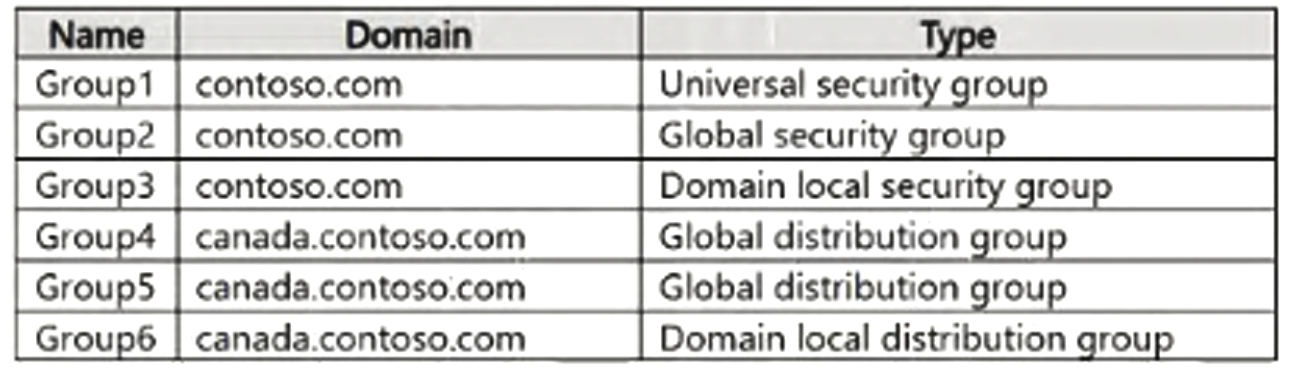
The forest contains the groups shown in the following table.
Current Problems -
When an administrator signs in to the console of VM2 by using Virtual Machine Connection, and then disconnects from the session without signing out, another administrator can connect to the console session as the currently signed-in user.
Requirements -
Technical Requirements -
Contoso identifies the following technical requirements:
Change the replication schedule for all site links to 30 minutes.
Promote Server1 to a domain controller in canada.contoso.com.
Install and authorize Server3 as a DHCP server.
Ensure that User1 can manage the membership of all the groups in Contoso\OU3.
Ensure that you can manage Server4 from Server1 by using PowerShell remoting.
Ensure that you can run virtual machines on VM1.
Force users to provide credentials when they connect to VM2.
On VM3, enable Data Deduplication on all volumes that support the feature.
You need to meet the technical requirements for VM3.
On which volumes can you enable Data Deduplication?
Community Discussion